Avoid random “cleaner” apps from unknown developers. They often nag for accessibility access and deliver little lasting benefit.
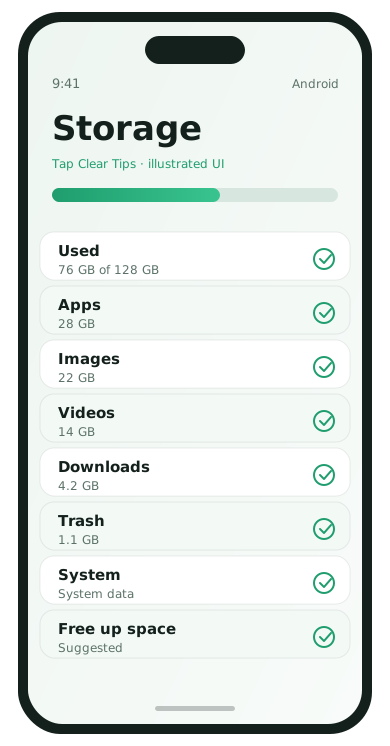
1. See what is using space
- Open Settings → Storage.
- Note categories: Apps, Images, Videos, System, Trash.
- Tap each large category before deleting anything.
2. Clear junk you will not miss
- Empty Trash / Recently deleted in Photos and Files
- Delete duplicate downloads in the Download folder
- Remove old APK installers
- Clear browser downloads you already used
3. Offload photos and videos
- Turn on backup in Google Photos.
- Confirm recent items appear at photos.google.com.
- Use Free up space in Google Photos to remove backed-up device copies.
- Only delete local copies after cloud verification.
4. Manage messaging media
Chat apps store images and videos aggressively. In WhatsApp and similar apps, clear old media from Storage and disable auto-download on mobile data.
5. Clear app cache carefully
- Settings → Apps → see all apps.
- Sort by size if available.
- Open a heavy app → Storage → Clear cache.
- Prefer Clear cache over Clear data unless you are ready to sign in again.
6. Uninstall or disable large unused apps
Games and unused editors are common space hogs. If a preinstalled app cannot be uninstalled, disable it so it stops updating and sitting in your way.
7. Move files to a computer or card
For big offline videos or document archives, copy them to a computer or SD card (if your phone supports one), then delete the phone copies.
Storage targets that feel healthy
- Keep at least 10–15% free when possible
- Do a cleanup before major system updates
- Recheck Downloads monthly
What is safe to delete vs what needs a backup first
- Usually safe: Downloads you already used, duplicate screenshots, emptied trash, app caches
- Backup first: Camera folder, WhatsApp media you care about, documents, voice notes
- Be careful: Clear data buttons that sign you out and wipe app files
A practical rule: if you would be upset to lose it forever, confirm a cloud or computer copy before removing the phone copy.
Worked example: reclaiming 8–12 GB
- Empty Recently deleted in Photos (often 1–3 GB).
- Clear WhatsApp images older than three months after backup if needed.
- Uninstall two large games or editors.
- Use Google Photos free-up after verifying backup.
- Clear cache on Chrome, Maps, and your heaviest social app.
Do these in order and recheck Settings → Storage after each major step so you learn which action helped most on your device.
Prevent the phone from filling up again
- Auto-download chat media on Wi‑Fi only
- Review Downloads on the first weekend of each month
- Keep at least a few GB free before system updates
- Stop installing “cleaner” apps that create more icons and notifications
Storage FAQ
- Why is System using so much space?
- System includes Android itself and reserved space. You usually cannot delete it directly; free user data instead.
- Is Clear Cache safe?
- Yes for most apps. You may need to reload feeds or thumbnails afterward. Avoid Clear Data unless you are ready to sign in again.
- Should I factory reset to free space?
- Only after backup, and only if storage tools plus uninstalls failed. Reset is a last resort, not a weekly habit.
- Do SD cards still help?
- On phones that support them, yes for media archives. Apps and private photos should still have a cloud backup strategy.