What “good enough” backup means
- Contacts appear under the cloud account you will use on the new phone
- Recent camera photos are visible in Google Photos or iCloud Photos
- You can sign into that account on another device successfully
- You know whether WhatsApp/Telegram chats need a separate export
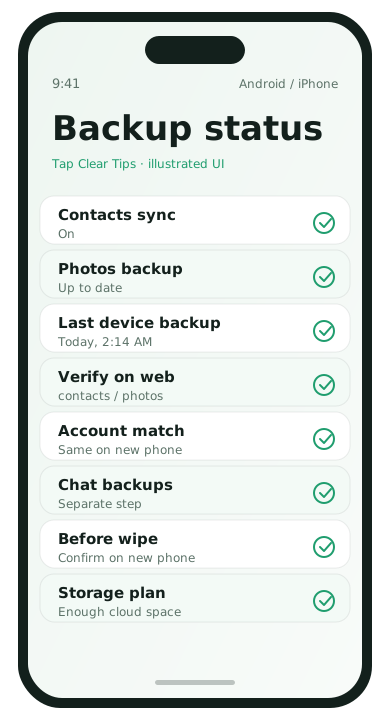
Android: back up contacts
- Open the Contacts app.
- Confirm contacts are saved to your Google account, not “Phone” storage only.
- Go to Settings → Google → Settings for Google apps → Contacts sync (labels vary) and turn sync on.
- On a computer, visit contacts.google.com while signed into the same account and confirm names appear.
If contacts are stuck on the SIM or device only, export them to a .vcf file from the Contacts app, then import that file into your Google account.
Android: back up photos
- Install or open Google Photos from the Play Store.
- Sign in with the same Google account.
- Turn on Backup for Device folders / Camera.
- Connect to Wi‑Fi and wait until backup status shows complete for recent items.
- On another device or a computer, open photos.google.com and confirm the newest shots appear.
Large libraries can take hours. Overnight on Wi‑Fi is normal. Keep the phone charged and awake-friendly settings enabled if backup pauses when the screen sleeps.
iPhone: back up contacts
- Open Settings → [your name] → iCloud.
- Turn on Contacts.
- Open the Contacts app and confirm your list looks complete.
- On a computer, sign in at iCloud.com → Contacts and verify the same names.
If you also use Gmail contacts, open Settings → Contacts → Accounts and confirm the account sync you want is enabled so you do not create duplicates later without noticing.
iPhone: back up photos
- Open Settings → [your name] → iCloud → Photos.
- Turn on iCloud Photos if that is your main plan.
- Stay on Wi‑Fi and power until Recent uploads catch up.
- Check iCloud.com or another Apple device for the newest photos.
If iCloud storage is full, free space first or temporarily export the most important albums to a computer. A half-finished iCloud Photos sync is one of the most common upgrade surprises.
Optional: full device backup as a safety net
Android: Settings → Google → Backup → Back up now.
iPhone: Settings → [your name] → iCloud → iCloud Backup → Back Up Now.
Full backups help with app layouts and many settings, but they are not a reason to skip verifying contacts and photos separately.
Switching between Android and iPhone
- Android → iPhone: Apple’s Move to iOS can help during setup; still verify Google Contacts/Photos if those were your source of truth
- iPhone → Android: Google’s switch tools / cable transfer options can help; confirm iCloud Contacts were exported or synced where you need them
Verification checklist before trade-in
- New phone signed into the correct account
- Sample of 10 important contacts present
- Photos from today and from last month visible
- Old phone still unlocked and in your possession
- Only then: sign out, erase, and hand over the old device
Common backup failures
- Photos backed up to Account A while the new phone uses Account B
- Contacts saved to phone storage instead of cloud
- Backup paused for weeks because iCloud/Google storage was full
- Assuming WhatsApp chats are included in system backup without checking
Backup FAQ
- How long should photo backup take?
- Large libraries can take overnight on Wi‑Fi. Keep power connected.
- Can I back up to two clouds?
- Yes, but pick one source of truth to avoid confusion.
- Do chat backups equal photo backups?
- No. Back them up separately if you care about message history.
- What if verification fails on the new phone?
- Stop wiping the old phone and resolve account mismatch first.