1. Read Apple’s storage breakdown
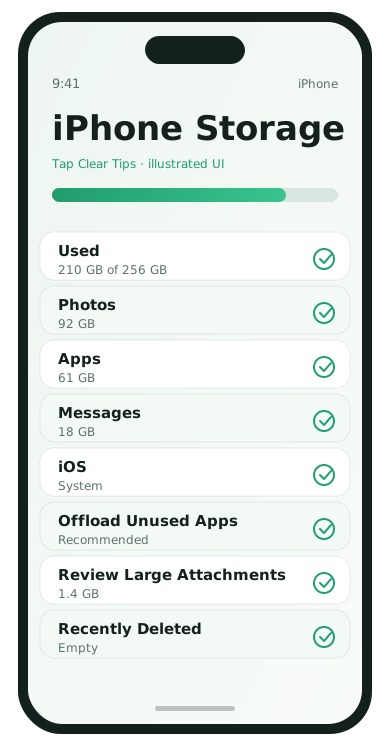
- Open Settings → General → iPhone Storage.
- Wait for the category bars to finish calculating.
- Expand Recommendations such as Offload Unused Apps.
2. Use Recommendations first
- Offload Unused Apps: removes the app, keeps documents
- Review Large Attachments: clear old message payloads
- Delete unused TV downloads and podcasts
3. Photos without accidental loss
- If you use iCloud Photos, confirm sync has finished on Wi‑Fi.
- Recently Deleted must be emptied to reclaim space.
- Export irreplaceable videos to a computer before mass deletes.
4. Messages and WhatsApp media
Open Settings → Apps → Messages → Keep Messages and consider 1 Year if you do not need forever history on-device. In WhatsApp, clear old media from Storage and disable auto-save to Photos if that duplicates everything.
5. Safari and app caches indirectly
Safari cache is rarely the largest category, but clearing History and Website Data can help at the margins. Large offline maps and game downloads are usually better targets.
6. Know when you need a bigger plan
If Photos alone fill a 64/128 GB phone, cloud storage or a larger next phone is the long-term fix. Cleanup only buys time.
How to read the storage bars honestly
iOS groups data into System, Photos, Apps, Messages, and more. “System” can look huge and is not a folder you should manually delete. Focus on Photos, Apps, and Messages first—those are the categories you can meaningfully influence.
Offload vs delete
- Offload App: removes the app binary, keeps documents/data
- Delete App: removes the app and its local data
Offload is ideal for large apps you reopen monthly. Delete is better for experiments and games you will not miss.
A safe afternoon cleanup plan
- Connect to Wi‑Fi and power.
- Confirm iCloud Photos or your chosen backup path is up to date.
- Empty Recently Deleted.
- Review Large Attachments in Messages.
- Offload two large unused apps.
- Restart and confirm free space improved.
iCloud Photos vs Optimize iPhone Storage
Optimize iPhone Storage keeps smaller device copies while full-resolution originals stay in iCloud. That can free space, but it needs enough iCloud capacity and a successful sync. On slow networks, open a few older photos to confirm they download before you travel somewhere offline.
App-specific downloads
- Delete watched shows in TV / streaming apps
- Remove offline map regions you no longer visit
- Clear podcast episodes marked as played
These rarely appear obvious on the home screen but often free multiple gigabytes.
iPhone storage FAQ
- Why is Other/System large?
- iOS maintains caches and resources you cannot browse like a folder. Target Photos, Messages, and apps first.
- Will Offload App delete my documents?
- No. It removes the app and keeps documents; reinstalling restores the app shell.
- Is deleting Recently Deleted required?
- Yes, to reclaim space. Items there still occupy storage until emptied.
- Should I turn off iCloud Photos to save space?
- Not without understanding where originals will live. Missteps here cause data loss.