Start with a two-bucket system
- Must interrupt: calls, SMS/chat from real people, banking fraud alerts, calendar reminders you act on
- Can wait: shopping deals, social likes, game energy reminders, newsletter blasts
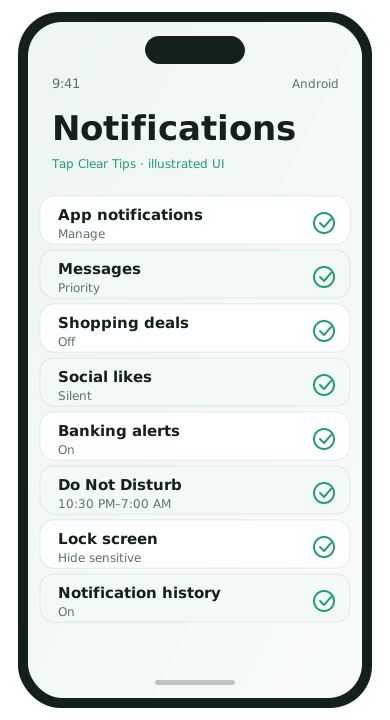
1. Review apps from the notification shade
- Pull down the notification shade when a noisy alert appears.
- Long-press the notification.
- Choose a quieter importance level or turn that category off.
- Repeat for the apps that bother you most this week.
2. Use the full Notifications settings list
- Open Settings → Notifications.
- Open App notifications.
- Sort by Most recent if available.
- Disable entire apps that only send promotions.
- For mixed apps (email, shopping), open categories and keep only useful ones.
3. Protect conversations
On many Android versions you can mark conversations as priority so personal chats still break through while other alerts stay silent.
- Open a chat notification.
- Long-press and set it as Priority if offered.
- In Messages settings, confirm notification styles for conversations.
4. Schedule Quiet time / Do Not Disturb
- Open Settings → Modes & Routines or Digital Wellbeing / Do Not Disturb.
- Set sleeping hours.
- Allow calls from starred contacts if you need emergencies.
- Optionally allow repeat callers.
5. Turn off lock-screen previews for sensitive apps
Banking and messenger previews on a lock screen are convenient and leaky. Set sensitive content to hidden on the lock screen while still allowing the alert sound if you want.
6. Weekly five-minute cleanup
- Disable alerts for any app that surprised you
- Keep one shopping app’s order updates, mute the rest
- Ask whether an email push is truly better than checking twice a day
Signs your setup is working
- You can leave the phone face-up during meals
- Important chats still feel immediate
- You are not dismissing twenty junk banners an hour
Category-level control beats all-or-nothing
Modern Android apps often split alerts into categories such as Account, Recommendations, Payments, and Status. Turning off the whole app can hide a shipping update you want. Opening the app’s notification categories and disabling only Recommendations / Marketing is usually the better move for shopping and travel apps.
- Settings → Notifications → App notifications → choose an app.
- Open each category.
- Keep transactional categories.
- Disable promotional and “suggested for you” categories.
Examples of good defaults
- Banking: keep fraud and payment alerts; mute tips and offers
- Email: push only VIP / starred accounts if your client supports it
- Shopping: keep order and delivery; mute deals
- Social: keep direct messages; mute likes, tags, and “people you may know”
- Games: usually mute everything except optional event reminders you truly use
If notifications return after an update
App updates sometimes re-enable categories. When an old annoyance comes back, long-press the new notification immediately and set that category to silent or off again. A two-second fix at the moment of annoyance beats a monthly settings audit you will postpone.
Notifications FAQ
- Why do muted apps still vibrate?
- A category may still be enabled. Open category settings, not only the master toggle.
- Can I silence a group chat only?
- Often yes inside the messaging app’s conversation settings.
- Do updates reset notification prefs?
- Occasionally. Fix with a long-press when the first new spam arrives.
- Is Do Not Disturb enough alone?
- Schedules help, but per-app cleanup reduces daytime noise too.