1. Confirm it is not just a heavy-use day
Navigation, hotspot use, bright outdoor screen time, and long video calls can empty a healthy battery. Before changing settings, ask:
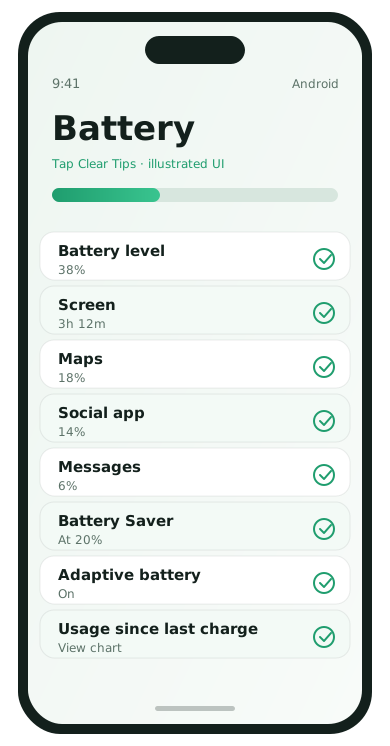
- Did I use maps or hotspot more than usual?
- Was the screen on for hours?
- Did I install a new app yesterday?
If usage was unusually high, test again on a normal day before deep troubleshooting.
2. Read the battery screen first
Android
- Open Settings → Battery.
- Open battery usage and note the top apps since last charge.
- Look for apps you barely opened but still rank high.
iPhone
- Open Settings → Battery.
- Check Battery Usage by App for the last 24 hours and 10 days.
- Expand an app to see Screen vs Background activity.
3. Screen brightness and always-on features
The display is often the largest power cost. High brightness plus always-on display adds up quietly.
- Turn on adaptive/auto brightness
- Lower maximum brightness outdoors only when needed
- Shorten auto-lock time
- Disable Always On Display if standby drain is the complaint
4. Background app refresh and runaway sync
Email, social, weather, and shopping apps love background updates. If an app shows high background battery use, restrict it.
Android: Settings → Apps → [App] → Battery → restrict background usage if the OS offers that control.
iPhone: Settings → General → Background App Refresh. Turn it off globally or per app.
5. Location services that never sleep
“Always” location access is useful for Find My Device and a few travel tools. It is rarely necessary for shopping or photo editors.
- Open location permissions for top battery offenders.
- Switch them to While Using or Ask Next Time.
- Disable Precise Location for apps that only need a city-level guess.
6. Push notifications and noisy widgets
Constant alerts wake the radio and the screen. Widgets that refresh frequently can also cost power.
- Mute promotional notifications
- Remove live widgets you never look at
- Keep critical alerts only for messages, calendar, and banking
7. Weak signal and hopping networks
Phones spend extra energy searching when cellular or Wi‑Fi signal is poor. If drain happens in one building, signal may be the real cause.
- Prefer Wi‑Fi calling where signal is weak and the feature is available
- Forget broken Wi‑Fi networks the phone keeps rejoining
- Enable Airplane Mode overnight in dead-zone bedrooms if needed
8. Software age, buggy apps, and battery health
- Install the latest system update.
- Update the top battery-using apps from the official store.
- If one app dominates usage, offload/uninstall it for 48 hours and compare.
- Check battery health indicators if your phone provides them.
Aging batteries hold less charge even when software is perfect. If Maximum Capacity is low or the phone dies at 20–30%, hardware may be the limit.
A simple 48-hour test plan
- Charge to 100% and note the time.
- Use the phone normally for one day without changing settings.
- Screenshot the battery usage page at bedtime.
- Next day, apply one fix only (for example, restrict one bad app).
- Compare the next bedtime screenshot.
When to worry about heat
Warm under load can be normal. Hot while idle, especially with sudden drain, deserves attention. Remove a thick case while charging, close heavy games, and update or remove the suspect app. If heat continues while idle after a reboot, contact the manufacturer or a trusted repair shop.
What usually fixes it
- One misbehaving app restricted or removed
- Always-on location turned down
- Lower screen timeout / disabled always-on display
- System update after a buggy release
Battery FAQ
- Should I calibrate by draining to zero?
- Modern lithium batteries do not need ritual zero drains.
- Is 100% charging bad every night?
- Optimized charging features help; extreme anxiety is unnecessary.
- Can widgets drain battery?
- Yes, especially animated or always-refreshing ones.
- When is battery replacement worth it?
- When health is low and runtime no longer matches your day.