A practical rule that works
Before tapping Allow, finish this sentence: “This app needs this permission so I can do this action right now.” If you cannot finish the sentence, choose Don’t Allow or a limited option.
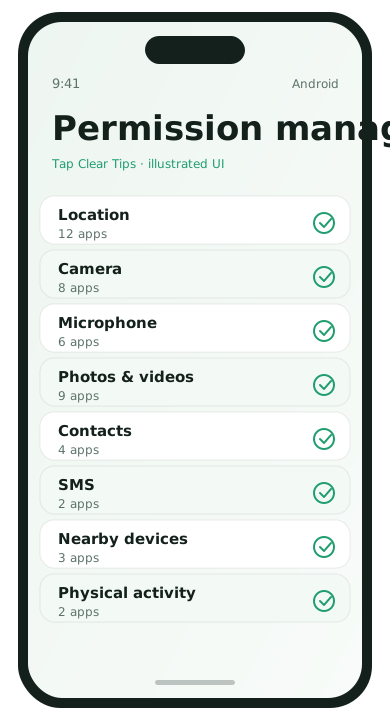
Permission types that matter most
Location
- While Using: best default for maps, rideshare, local weather
- Always: only for device finding tools or carefully chosen family/safety apps
- Precise vs Approximate: approximate is enough for many content apps
Camera and microphone
Video calls, scanning, and recording need these. Flashlight widgets, coupon apps, and random games often do not. Prefer one-time access when your phone offers it.
Photos, files, and media
Modern systems can share selected photos instead of the whole library. Use selected access whenever an app only needs one image for a profile picture or upload.
Contacts, call logs, and SMS
These are sensitive. Messaging and phone apps may need them. A flashlight app does not. Be especially careful with apps that want SMS access “for verification” and then keep it forever.
How to review permissions on Android
- Open Settings → Security & privacy (wording varies).
- Tap Privacy controls or Permission manager.
- Open Location, Camera, Microphone, and Photos/Files.
- For each app, choose Allow only while using, Ask every time, or Don’t allow.
- Remove unused apps that still hold sensitive permissions.
Also check Settings → Location → Location services for Wi‑Fi scanning and Bluetooth scanning options if battery or privacy is a concern.
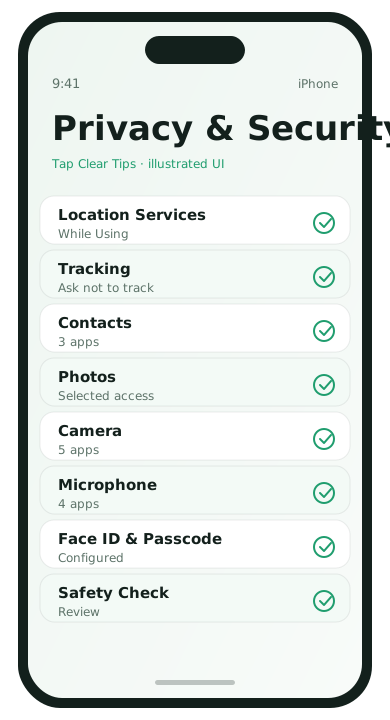
How to review permissions on iPhone
- Open Settings → Privacy & Security.
- Review Location Services, Camera, Microphone, Photos, and Tracking.
- Tap Location Services → each app and set While Using the App when possible.
- Under Photos, choose Limited Access and select only needed images.
- Open Tracking and disable Allow Apps to Request to Track if you want fewer cross-app prompts.
Smart defaults by app category
- Maps / rideshare: location while using; precise on
- Banking: camera for checks/deposits if you use that feature; location usually off unless required for fraud checks you accept
- Social apps: selected photos; microphone only during creation/calls
- Shopping: deny contacts; location only while using store finder
- Weather: approximate location is often enough
What to do when an app breaks after you deny access
That is useful information. Open the feature again and grant the minimum permission only if you still want that feature. Example: deny microphone globally for a social app, then allow it later only when you start a voice note.
Monthly 10-minute permission cleanup
- Sort apps by last used and delete what you abandoned.
- Open permission manager lists for Location, Camera, and Microphone.
- Revoke Always location from anything that is not a safety/find tool.
- Clear photo library access for apps that no longer need uploads.
Myths that cause bad decisions
- “If I deny permissions, the phone is unsafe.” No—over-granting is usually riskier.
- “All apps need contacts to work.” Most do not.
- “Permissions are permanent.” You can change them anytime.
Permissions FAQ
- Why does an app keep asking?
- You chose Ask Every Time, or it needs the permission for a feature you opened.
- Is Approximate Location good enough for weather?
- Usually yes.
- Can I revoke permissions anytime?
- Yes. The feature that needs them will simply stop until you allow again.
- Do deleted apps keep permissions?
- Removing the app removes its grants.