First question: is it only your phone?
- Check whether another phone or laptop on the same Wi‑Fi can load a website.
- If nothing works, the problem is likely the router or ISP—not your phone.
- If only one phone fails, stay on the phone-focused steps below.
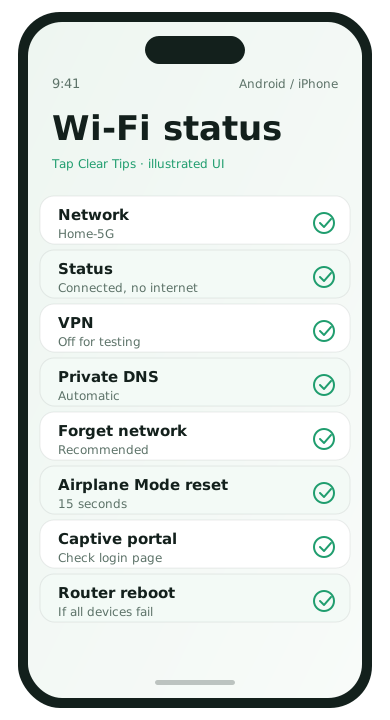
1. Toggle Airplane Mode
This quickly resets radios without losing saved networks.
- Turn on Airplane Mode for 15 seconds.
- Turn it off.
- Reconnect to Wi‑Fi and test Safari/Chrome with a simple site.
2. Forget the network and rejoin
iPhone: Settings → Wi‑Fi → info icon → Forget This Network → rejoin with the password.
Android: Settings → Network & internet → Internet/Wi‑Fi → gear icon → Forget → rejoin.
This clears a bad DHCP lease or a stuck captive-portal state from hotel and café networks.
3. Check for a login page (captive portal)
Public Wi‑Fi often requires a browser login before internet access works. Open a non-HTTPS site attempt or the network login page prompt your phone shows. Complete the login, then retest.
4. Turn off VPN and private DNS experiments
- Disconnect any VPN app temporarily
- On Android, check Private DNS settings and set to Automatic if you changed it
- On iPhone, remove custom DNS profiles you do not recognize under Settings → General → VPN & Device Management
5. Renew the connection / reboot the phone
If the Wi‑Fi icon still shows no internet after rejoining, reboot the phone. It is boring and surprisingly effective when the network stack is stuck.
6. Test another DNS path without getting fancy
Only do this if you are comfortable changing network details. On many home networks you can configure the Wi‑Fi connection to use a public DNS such as your ISP default again after testing. If you are unsure, skip this step and reboot the router instead.
7. Router basics when multiple devices fail
- Power off the router and modem for 60 seconds.
- Power the modem first, wait until it is steady, then power the router.
- Reconnect devices and test again.
- If outages continue, check your ISP status page or contact support.
8. Rule out a blocked or outdated phone
- Confirm the phone date and time are set automatically
- Update the system software when possible
- Ask the network owner whether MAC filtering or device limits are enabled
Quick decision tree
- Only my phone fails: forget network → disable VPN → reboot phone
- All devices fail: restart modem/router → check ISP
- Only public Wi‑Fi fails: complete login portal → try mobile data
When it is not worth more tinkering
If mobile data works and only one public network fails, use mobile data or ask staff to reset that hotspot. Home networks that fail every day at the same time are often ISP or router hardware issues, not phone settings.
Wi‑Fi FAQ
- Why does the Wi‑Fi icon look fine?
- The phone joined the LAN, but the router may lack WAN access.
- Should I reset network settings early?
- Try forget-network and reboot first; reset network settings after those fail.
- Can VPN break only one network?
- Yes. Disable VPN to test.
- Do apartment ISPs throttle?
- Sometimes. Test multiple devices before blaming your phone.