Why home screen clutter slows you down
Every extra icon competes for attention. When shopping, social, banking, and one-off tools all sit on page one, your brain does extra work before every action. Organization is a speed feature.
1. Decide what belongs on page one
Keep only daily apps on the first screen:
- Phone, Messages, Camera, Photos
- Maps or transit
- One browser
- Email or calendar if you use them every day
Everything else can live in folders or the app drawer.
2. Create folders by job, not by color
- Long-press an app icon and drop it onto another related app.
- Name the folder by job: Travel, Money, Social, Shopping, Utilities.
- Move similar apps into those folders from the app drawer.
- Limit each folder to apps you still open. Delete the rest.
3. Use the app drawer as storage, not a junkyard
Open the app drawer and alphabetize or use categories if your launcher supports them. Uninstall apps you have not opened in months. If you are unsure, disable bloatware apps you cannot uninstall.
4. Place icons for your thumb
Put the apps you open most in the lower half of the screen. Top corners are fine for widgets you glance at, but poor for constant taps on large phones.
5. Widgets: keep one useful, remove the rest
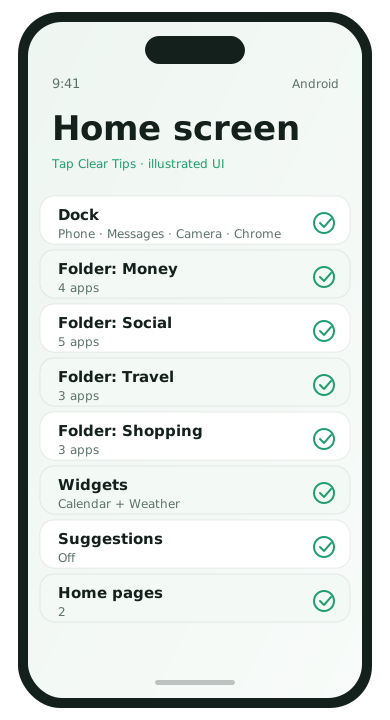
- Long-press empty space → Widgets.
- Add a calendar, notes, or weather widget only if you check it daily.
- Remove stacked widgets that look nice but never change your behavior.
6. Turn off unused home-screen suggestions
Some launchers suggest apps or stories on the home screen. If those suggestions feel noisy, disable them in launcher settings under suggestions, Discover, or similar labels.
7. A simple weekly reset
- Delete downloaded APKs and one-time tools you no longer need
- Move new apps into folders the same day you install them
- Keep page count to two screens when possible
Common mistakes
- Making ten tiny folders nobody remembers
- Leaving duplicate apps (two browsers, three galleries)
- Filling page one with decorative widgets
A sample layout that works for most people
Try this starting layout for one week, then adjust:
- Dock: Phone, Messages, Camera, Browser
- Page one row 1: Photos, Maps, Calendar, Notes
- Page one folders: Money, Social, Shopping, Travel
- Page two: work tools and rarely used utilities only
If you need a third page, your folders are probably too vague. Rename folders by the job you hire the apps to do, not by brand names.
How to clean without losing something important
- Make a temporary folder called Maybe.
- Move uncertain apps into Maybe for seven days.
- If you never open them, uninstall or disable.
- If you open one often, promote it back to page one or a real folder.
This avoids the common mistake of deleting an app in a burst of tidying and regretting it the next morning.
Notification badges and visual noise
Red badges make a clean layout feel urgent even when nothing important happened. In many launchers and app settings you can disable badge counts for social and shopping apps while keeping sound or banners for real messages. Pair this with a notification cleanup so the home screen stops training you to tap out of anxiety.
Home screen FAQ
- How many home screens is too many?
- If you cannot remember which page an app is on, consolidate into folders.
- Should I hide apps instead of uninstalling?
- Hide only if you truly need them. Otherwise uninstall.
- Do themes slow phones?
- Heavy animated themes can. Prefer simple setups on older devices.
- Is one folder named Misc okay?
- Temporarily. Sort it within a week or it becomes a junk drawer.