Take a standard screenshot
On most phones, press Power + Volume Down together for about a second. Some devices also support palm swipe or a Quick Settings tile.
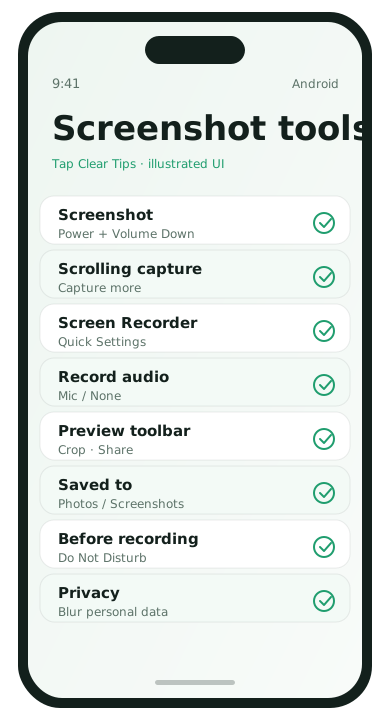
- Open the screen you want to capture.
- Press Power + Volume Down.
- Use the preview to edit, share, or delete.
Capture a long / scrolling screenshot
- Take a normal screenshot.
- Tap Capture more / Scroll / Long screenshot on the preview toolbar.
- Keep scrolling until the content you need is included.
- Save the expanded image.
Not every app supports scrolling capture, especially custom views and some games.
Record your screen
- Swipe down twice to open Quick Settings.
- Tap Screen Recorder (add the tile if missing).
- Choose whether to record audio (microphone, device audio, or none).
- Start recording, then stop from the notification or toolbar.
Privacy checklist before you share
- Crop out message previews and email addresses
- Blur account numbers and QR codes you do not intend to share
- Avoid recording lock-screen notifications
Where files are saved
Screenshots and recordings usually land in Photos/Gallery under Screenshots or Movies/Screen recordings. From there you can share or delete them.
Editing tools that save time
After a screenshot, use crop immediately so recipients see the exact error or setting. Markup tools can circle a toggle or blur an email address. If your phone offers a direct Share action from the preview, send from there and then delete the image if it was only needed once.
Screen recording for how-to clips
- Enable Do Not Disturb so personal banners do not appear mid-recording.
- Decide on microphone audio before you start.
- Start recording, wait one second, then begin the taps you want to show.
- Stop, watch the clip once, trim the beginning and end in Photos/Gallery if needed.
Short recordings under a minute are easier to send and easier for others to follow than a ten-minute unedited session.
Troubleshooting captures
- If Power + Volume Down opens the power menu, press more simultaneously and briefly.
- If scrolling capture is missing, the app may block it; capture multiple normal screenshots instead.
- If Screen Recorder is missing from Quick Settings, use the tile edit pencil to add it.
When to use a photo of the screen instead
If DRM blocks screenshots in a banking or streaming app, that is intentional. Do not hunt for bypass tools. Write down the on-screen reference number or use the app’s built-in share/export feature instead.
Organizing captures so they do not clog Photos
- Create an album named Receipts or Fixes
- Delete temporary bug-report screenshots after the issue is solved
- Prefer Files/PDF for long Safari pages you need to archive
A tidy capture habit supports storage health and keeps private banners from sitting in your library for months.
Capture FAQ
- Why can’t I screenshot some apps?
- Banking and streaming apps may block captures for security. Use in-app export features instead of bypass tools.
- Where do recordings go?
- Usually into Gallery/Photos under Screen recordings. Delete practice clips after you send them.
- Can I record internal audio?
- Some phones allow device audio; others only microphone. Check the recorder settings panel before starting.
- Why is scrolling screenshot grayed out?
- The app view may not support it. Take sequential screenshots and crop instead.