When split screen helps
- Copying details from email into a form
- Following a recipe while watching a timer or video
- Chatting while checking a map
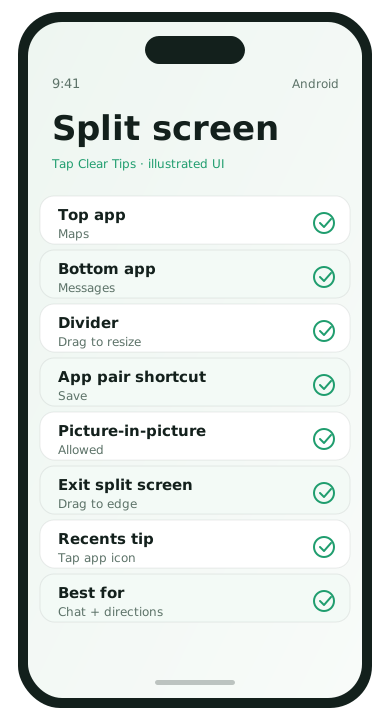
Standard gesture / Recents method
- Open the first app.
- Open Recents (gesture up and hold, or tap the Recents button).
- Tap the app icon at the top of the preview card.
- Choose Split screen / Open in split screen view.
- Pick the second app from Recents or the app list.
Resize and swap
Drag the divider to give one app more space. On many phones you can tap the divider controls to swap apps or exit split screen.
App pairs (where available)
Samsung and some other launchers let you save two apps as a pair shortcut. If you always open Maps + Messages together, save the pair on the home screen.
Floating / pop-up windows
Some Android skins support pop-up view. From Recents, open an app as a floating window for quick replies over a full-screen video. Close or expand it when finished so it does not drain attention.
Apps that refuse split screen
Banking and some video apps block split screen for security or playback reasons. That is normal. Use Picture-in-Picture for supported videos instead.
Picture-in-Picture tip
- Start a supported video.
- Leave the app with Home or Recents.
- Look for the small floating video window.
- Enable the permission under Settings → Apps → Special app access if needed.
Everyday workflows worth practicing
- Maps + Messages: share an ETA while navigating
- Browser + Notes: copy booking details without flipping apps
- YouTube / training video + Notes: follow steps while pausing less
- Email + Calendar: turn a message into an event
Practice opening split screen twice today with real tasks. Muscle memory matters more than memorizing menu names.
Brand notes
Samsung often uses the Recents icon menu plus Edge panels for app pairs. Pixel sticks closer to stock Recents actions. Xiaomi and others may label the feature Freeform, Floating windows, or Split screen under special app features. If Recents does not show the option, search Settings for “split screen” and confirm the apps support it.
Battery and attention tradeoffs
Two apps on screen can use more power and more of your attention. Exit split screen when you are done instead of leaving a chat pane open for hours over a video. For quick replies, a floating bubble or notification reply may be lighter than full split screen.
Accessibility and reachability tips
On tall phones, the upper app in split screen can be hard to tap one-handed. Put the app you interact with most on the bottom half. Exit split screen before walking or navigating outdoors so your attention returns to the physical world.
If split screen is missing
- Update the system.
- Confirm the app is not a tiny launcher stub.
- Search Settings for “force resize” or “apps in split screen” on skins that bury the toggle.
- Use Quick Reply / bubbles when split screen is blocked.
Multitasking FAQ
- Can every app split?
- No. Some apps disable it. Use Picture-in-Picture or quick reply instead.
- Does split screen drain battery faster?
- It can, because two apps stay active. Exit when finished.
- How do I exit quickly?
- Drag the divider to the edge or tap the full-screen control on supported skins.
- Is floating window better?
- For quick chats over video, yes. For side-by-side comparison, split screen is better.