Open the editor
- Go to Settings → Control Center.
- On newer iOS versions, tap Customize Controls / edit from Control Center as prompted.
- Add controls you use weekly and remove the rest.
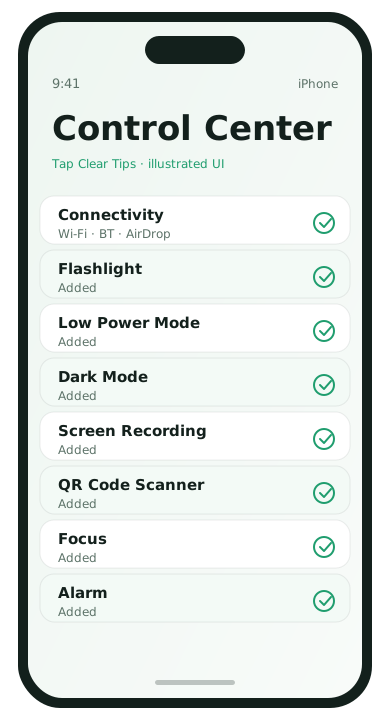
High-value controls to consider
- Flashlight
- Dark Mode
- Alarm / Clock
- Screen Recording
- QR Code Scanner
- Low Power Mode
- Connectivity card already covers Wi‑Fi and Bluetooth for most people
Arrangement tips
- Put Low Power Mode where your thumb reaches
- Keep Screen Recording away from accidental taps if you use Focus a lot
- Remove Home controls you never trigger
Long-press for extras
Many tiles expand. Long-press the network card for Wi‑Fi, Cellular, AirDrop, and Personal Hotspot. Long-press brightness for Dark Mode and Night Shift depending on iOS version.
Build Control Center around your day
Think through a normal weekday: commute, work focus, evening errands. Most people benefit from Low Power Mode, Flashlight, Dark Mode, Wallet/transit QR tools, and Screen Recording for support calls. Home automations belong there only if you actually tap them weekly.
Reduce accidental taps
If you often start Screen Recording by mistake, move it higher or remove it until you need it for a tutorial. If children use the phone, consider which controls expose Shared purchases or smart-home locks.
Pair with Focus modes
Control Center can show Focus controls so you can jump into Sleep or Work without opening Settings. Combine that with allowed notification lists from your Focus configuration for a calmer evening routine.
Connectivity card habits
Long-press the network card to toggle Wi‑Fi, Bluetooth, AirDrop, and hotspot without digging. When troubleshooting, turn Wi‑Fi off from here to test cellular, then turn it back on. Avoid leaving Personal Hotspot enabled after you finish sharing.
Suggested starter sets
Minimalist: Flashlight, Low Power Mode, Focus, Alarm.
Creator/help desk: Screen Recording, Dark Mode, Magnifier, QR Scanner.
Traveler: Low Power Mode, Wallet, Alarm, Translation (if you use it), Hotspot access via connectivity card.
Pick one set, use it for a week, and remove anything you did not tap.
Control Center FAQ
- Why don’t I see Screen Recording?
- Add it in Settings → Control Center first.
- Can Focus replace Do Not Disturb tiles?
- Focus controls often supersede older DND-only tiles. Keep the Focus control handy.
- Do tiles sync across iPhones?
- Not always. Customize each device you use daily.
- Will removing a tile delete data?
- No. It only removes the shortcut.