Before you begin
- Open the Shortcuts app (install it from the App Store if missing).
- Allow notifications for Shortcuts if you want alerts.
- Keep the first automations simple so they are easy to trust.
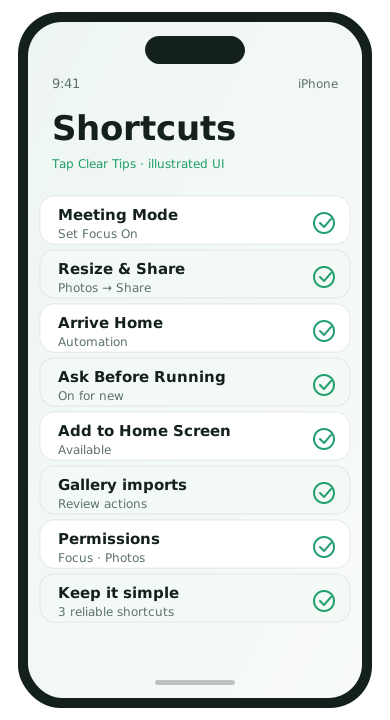
1. One-tap Do Not Disturb for meetings
- In Shortcuts, create a new Shortcut.
- Add the Set Focus action.
- Set Focus to Work or Do Not Disturb → Turn On.
- Optional: add Wait 60 minutes, then Set Focus Turn Off.
- Name it Meeting Mode and add it to the Home Screen.
Use this when calendar apps are overkill but you need quiet fast.
2. Convert photos to a share-ready collage folder habit
A simpler beginner version: a shortcut that takes the latest photo and resizes it for messaging.
- Add Select Photos → turn off Select Multiple if you want one image.
- Add Resize Image to a width like 1200 px.
- Add Share.
- Save as Resize & Share.
3. Arrival log / errand checklist
- Create a Personal Automation → Arrive → choose a location such as Home or Grocery.
- Add Show Notification or Open App (Notes / Reminders).
- Add a checklist note action if you use Notes.
- Turn off Ask Before Running only after you trust it.
Safety tips
- Avoid shortcuts that ask for passwords or come from strangers
- Review each action before enabling Auto-Run
- Delete automations you no longer use
When Shortcuts are worth more time
If you repeat the same three settings every morning—brightness, Focus, open transit app—combine them into one “Start Commute” shortcut.
How to add a shortcut to the Home Screen
- Open the shortcut.
- Tap the share / information menu.
- Choose Add to Home Screen.
- Give it a clear name like Meeting Mode.
Home Screen icons make Shortcuts feel like real apps, which is why beginners actually keep using them.
Automation permission prompts
iOS may ask before running an automation. Leave Ask Before Running on until you trust the result for a week. Then disable the prompt for low-risk actions such as opening Notes at the grocery store. Never auto-run a shortcut that sends messages or shares your location without a prompt.
Ideas for your fourth and fifth shortcuts
- Turn on Low Power Mode + lower brightness for travel days
- Open your transit app and start a Focus named Commute
- Log water or medicine with a single tap into Reminders / Notes
Build only what you will use this week. A library of twenty unused shortcuts is just another form of clutter.
Debugging a shortcut that fails
- Run it manually from the Shortcuts app.
- Read the error—usually a missing permission for Photos, Focus, or Location.
- Grant the permission and test again.
- Split a long shortcut into two smaller ones if it is hard to reason about.
Beginners get better results from three reliable shortcuts than from one fragile mega-automation.
Shortcuts FAQ
- Are third-party shortcut galleries safe?
- Only import what you understand. Review every action.
- Why does an automation ask every time?
- Ask Before Running is on. Disable it only for low-risk personal automations.
- Do Shortcuts work offline?
- Many do, unless they need web or cloud actions.
- Can Shortcuts replace full apps?
- Sometimes for tiny jobs; they are not a substitute for security-sensitive banking features.