The right order
- Set a strong device passcode/PIN/password.
- Add fingerprint or face unlock.
- Shorten the auto-lock timer.
- Review lock-screen notification previews.
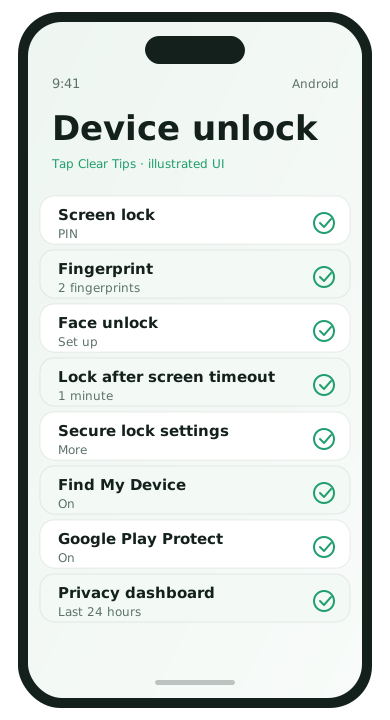
Android setup
- Settings → Security & privacy → Device unlock.
- Set PIN, pattern, or password. Prefer a longer PIN over 1234.
- Add fingerprint or face unlock.
- Register an alternate finger (left hand / index) for awkward angles.
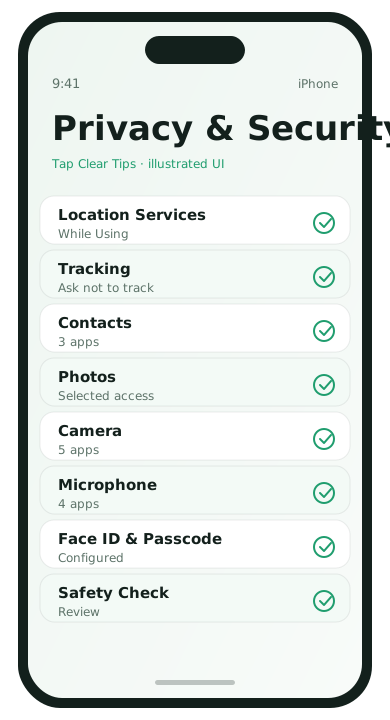
iPhone setup
- Settings → Face ID & Passcode (or Touch ID & Passcode).
- Set a passcode that is not your birthday.
- Enroll Face ID / Touch ID in normal lighting.
- Add an alternate appearance if your face changes with glasses or beard patterns and the OS offers it.
Lock-screen privacy
- Hide message previews on the lock screen if you share spaces
- Disable today widgets that show calendar details you would rather keep private
- Require passcode for USB accessories / stolen-device protections when available
Habits that matter more than fancy settings
- Do not share biometrics “just for a minute”
- Do not write the passcode on a slip under the phone
- Turn on Find My / Find My Device before you need it
Passcode quality without making life miserable
A six-digit PIN is far better than 123456. A longer alphanumeric passcode is stronger still if you can type it rarely—biometrics handle the daily unlocks. Avoid using the same PIN as your ATM card if you can help it.
Biometrics enrollment tips
- Enroll fingerprints that you actually use to hold the phone
- Re-enroll Face ID in the lighting conditions you live in
- Add a second finger for cases and winter gloves situations where you still need speed
- Keep the sensor and camera clean
Stolen Device / strong lock features
Newer iOS and Android releases continue to add stolen-device protections that require biometric authentication for sensitive account changes after the phone leaves familiar locations. Turn those on when offered. They close a gap where a thief who somehow learned your passcode could change your Apple ID or Google password.
Guest access without sharing your face or PIN casually
Do not enroll other people’s fingerprints “just for today.” If someone needs a call, place the call yourself. For kids’ entertainment, prefer Guided Access / screen pinning where available rather than teaching them your device code.
After a screen replacement
Biometrics sometimes need re-enrollment after hardware service. Set aside five minutes to register Face ID or fingerprints again instead of leaving the phone on an easy temporary PIN.
Lock screen FAQ
- What if Face ID fails with masks?
- Use passcode or enroll options your iOS version supports. Do not disable the passcode.
- Is a pattern safe on Android?
- Longer patterns are better than tiny ones; a strong PIN/password is still preferable for many people.
- Should biometrics unlock password managers?
- Convenient but optional—follow your threat model.
- What if my sibling knows my PIN?
- Change it. Shared PINs defeat the model.