Find your biggest data users first
Android: Settings → Network & internet → Internet / Data usage → App data usage.
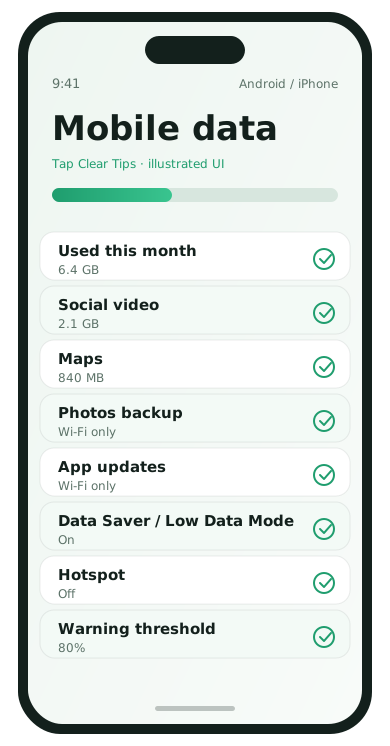
iPhone: Settings → Cellular / Mobile Data → scroll the per-app list.
Note the top three apps before changing anything else.
Android data-saving moves
- Turn on Data Saver in Network settings.
- Restrict background data for heavy apps you only need on Wi‑Fi.
- In Play Store, set auto-update to Wi‑Fi only.
- Disable automatic media download in chat apps on mobile data.
iPhone data-saving moves
- Settings → Cellular: turn off Mobile Data for apps that can wait for Wi‑Fi.
- Settings → App Store → disable On Mobile Data / App Downloads as needed.
- Settings → Apps → Music/Photos alternatives: prefer Wi‑Fi uploads.
- Turn on Low Data Mode under Cellular options when traveling.
Stop the usual silent drains
- Video autoplay in social apps
- Cloud photo backup on cellular
- App updates over mobile data
- Hotspot sessions left running
Set a warning before you hit the cap
Android can warn or cut off data at a limit you choose. Carrier apps may also send SMS alerts—turn those on if you have a hard monthly cap.
Travel habits that help
- Download maps offline before you leave Wi‑Fi
- Download playlists and podcasts in advance
- Use Wi‑Fi calling only when it truly saves you battery/signal issues you care about
Chat apps are often the hidden cost
Messaging apps can auto-download every image, video, and voice note on cellular. In WhatsApp and similar apps, set photos/videos to Wi‑Fi only and open media on demand when you care. Disable auto-save to Photos if it duplicates the same video into two places and later onto cloud backup over cellular.
Streaming quality settings
- YouTube / streaming apps: use Data Saver or lower playback quality on cellular
- Music apps: download playlists on Wi‑Fi; avoid high-quality streaming on the go unless you need it
- Maps: download offline areas for neighborhoods you visit often
Hotspot discipline
Personal hotspot can burn through a monthly allowance quickly when a laptop starts cloud backups or app-store updates. When hotspot is on, pause large computer updates and prefer a phone browser for quick tasks. Turn hotspot off as soon as you finish.
Weekly data hygiene
- Open the system data-usage screen.
- Note any new app in the top five.
- Decide: allow on cellular, Wi‑Fi only, or uninstall.
- Reset your mental baseline after a trip so one travel week does not scare you forever.
Children’s phones and shared plans
On family plans, one tablet hotspot day can surprise everyone. Use carrier alerts, per-app cellular toggles, and age-appropriate Screen Time / Family Link limits so downloads require Wi‑Fi. Agree on a simple household rule: big updates wait for home Wi‑Fi.
Data FAQ
- Why did usage spike overnight?
- Cloud photo backup, OS downloads, or app updates on cellular are common causes.
- Is Low Data Mode enough?
- It helps, but per-app cellular toggles catch stragglers.
- Do widgets use data?
- Some refresh online. Remove the chatty ones.
- Can I monitor daily?
- Yes—check the system data screen during trips.